

You’ve got your domain name for your website. Now let’s get you a professional email address to go with it! I’ll walk you through how to set it up, which email providers I recommend, and a few important settings you’ll want to get right.
First, some basics…
Why do you need an email address with your own domain name?
There’s nothing inherently wrong with using a free Gmail address for your business. But having an email address that matches your domain name, like hello@yourbusiness.com instead of yourbusiness@gmail.com, makes your business look more professional and established.
And these days, with so many phishing emails and scams, I think it’s more important than ever. When someone receives an email from yourname@yourbusiness.com, it matches the website they recognize, which helps establish credibility and trust.
Plus, if you ever change email providers, you can keep the same email address. It’s yours as long as you maintain your domain registration.
Your website hosting and email can be separate
You don’t have to buy email from the company where you registered your domain or where your website is hosted.
I provide website hosting through WP Engine, which specializes in hosting WordPress websites, not email. I think it’s better to use companies that specialize in what they do best.
For my own business, I register my domains through GoDaddy, host my website with WP Engine, and use Zoho Mail for email. They all work together just fine.
Here’s how to set up your business email
Decide what email addresses you need
How many email addresses will you need? Here are some ideas:
- Personal address, like john@yourbusiness.com, if you want an email address associated with you personally.
- General business address, like hello@, info@, or contact@yourbusiness.com, for general inquiries through your website.
- Department addresses, like support@ or billing@yourbusiness.com, if you have different people handling different types of inquiries.
I only use one address, suzanne@suzanneharrisonweb.com, because my business is personal and my clients work directly with me. I also really like hello@yourbusiness.com for a website because it feels friendly and welcoming. But info@ and contact@ work just fine, too!
Keep in mind: You don’t necessarily need a separate mailbox for every email address. Most providers offer email aliases, which let you receive messages sent to multiple addresses in one inbox. For example, hello@yourbusiness.com could deliver to john@yourbusiness.com without paying for two mailboxes.
Choose an email provider
There are lots of email providers to choose from, and I’ll be the first to tell you that I’m not an email expert. If your business needs multiple email accounts for different employees, I’d recommend getting help from an IT professional who can make sure everything is set up and managed properly.
But for a small business with simple email needs, here are the two providers I’ve used or recommended based on my own experience.
- Zoho Mail – I’ve been using Zoho Mail for my business for eight years and have been really happy with it. It’s affordable, reliable, and does everything I need. As of this writing (October 2026), they offer a free plan for up to five users, with some limitations, so you could certainly start there. Their paid Mail Lite plan starts at just $1 per user per month, billed annually. You can compare their plans here.
- Google Workspace (Gmail) – If you already love Gmail, are familiar with its interface, and use Google’s other tools, Google Workspace might be a better fit. It’s more expensive than Zoho, but includes Gmail, Calendar, Drive, Docs, and other business tools. And if you run a nonprofit, here’s something worth knowing: eligible organizations can get Google Workspace for Nonprofits for free, including email using their own domain name. You’ll need to verify your nonprofit status as part of the application process.
What about GoDaddy email?
If you registered your domain through GoDaddy, you’ve probably already seen their offers for professional email. I generally recommend skipping those.
GoDaddy sells Microsoft 365 email services, and while there’s nothing wrong with Microsoft 365 itself, I’ve had frustrating experiences with GoDaddy’s email support. I’d rather work directly with an email provider than have another company in the middle.
Create your email account
Once you’ve chosen your email provider, sign up for a plan and follow their setup instructions carefully.
You’ll need access to the account where your domain’s DNS settings are managed, which is often the company where you registered your domain, like GoDaddy.
Your email provider will walk you through verifying that you own your domain, creating your email addresses, and connecting everything so your email works.
Some providers can make the necessary DNS changes automatically, with your permission. For example, Zoho offers an automatic setup option for GoDaddy domains. Otherwise, you’ll be given the exact records to add yourself.
Here are the setup instructions for the two providers I’ve recommended:
Secure your account and test your email
You’re almost done! Before you start using your new email address, there are a few things worth checking.
- Make sure your email is authenticated. Your provider should walk you through setting up SPF, DKIM, and DMARC. These are DNS records that help prevent people from impersonating your domain and improve the chances of your emails reaching someone’s inbox instead of their spam folder.
- Turn on two-factor authentication (2FA). This adds an extra layer of security to your account, even if someone gets hold of your password.
- Set up account recovery. Make sure you have a recovery email address or another way to regain access if you get locked out.
- Test your email. Send a message to a personal email address, then reply to it. Make sure you can both send and receive messages, and check that your emails aren’t landing in spam.
Keep in mind that DNS changes can take some time to take effect, so your email might not work immediately.
And that’s it! You’ve got a professional email address that matches your website and is ready to use.
Business Email FAQs
Can you help me set up my business email?
Yes! I can do my best to help, particularly with DNS settings and connecting your email to your domain. Just keep in mind that email setup and troubleshooting aren’t included in my regular Hosting & Support Plan, so additional charges may apply.
Can you recommend someone to help with email or other IT issues?
Possibly! I don’t provide ongoing email or IT support, but I may be able to recommend someone who does. I can also ask other clients who they use and pass along their recommendations.
Should I put my email address on my website, or will I get spam?
I say yes, put it on your website! And yes, you’ll probably get some spam. But I’ve had my email address publicly displayed on my website for years, and it really hasn’t been much of a problem.
Contact forms can attract plenty of spam, too, especially if they don’t have good spam protection. I think making it easy for potential clients to contact you is more important than trying to avoid every spam message.
Can I use my business email address with a contact form on my website?
Absolutely! Your website’s contact form can send notifications directly to your business email address.
One thing to be aware of is email deliverability. Sometimes website-generated emails end up in spam folders or get quarantined by the recipient’s email system. We may need to configure additional authentication settings or an email sending service to make sure those notifications are delivered reliably.
Can I use my business email in Apple Mail, Outlook, or Gmail?
Usually, yes! I personally prefer checking my email through a browser window on my computer, and I use the Zoho Mail app on my phone.
Most email providers offer ways to connect your account to programs like Apple Mail or Outlook, although some plans have limitations. For example, Zoho’s free plan doesn’t support the standard IMAP or POP connections used by those apps.
Check with your email provider for instructions and to make sure your plan supports the app you want to use.
Am I paying for email or hosting services I don't need?
You might be! When you move your website to a new hosting company or set up email with a new provider, it’s worth checking what you’re still paying for.
I’ve seen clients continue paying for old website hosting long after their site has moved. And companies like GoDaddy sometimes bundle free email trials with other services that turn into paid subscriptions if you don’t cancel them.
Take a few minutes to review your account and make sure you know what each charge is for. You may still need your domain registration and email service, but you shouldn’t be paying for website hosting you’re no longer using.
One important caution: Don’t cancel anything until you’ve confirmed what it’s providing. Your old hosting account might still be handling your email, even if your website has moved.
A final word about email security
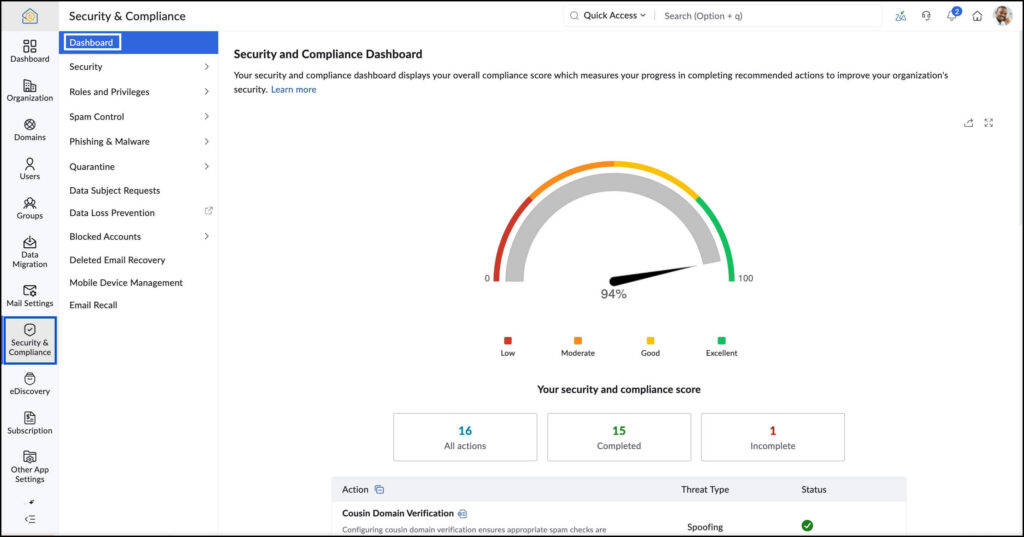
With spam, phishing, and email impersonation becoming more sophisticated, it’s worth taking the time to set up your business email securely and make sure your messages reach the people they’re intended for.
And if you get stuck, I’m happy to help as much as I can, particularly with DNS settings. If you need more extensive email or IT support, I may be able to recommend someone.